Documentation
Installing and Wiring a CP2-4-5 Dual-Output Power Controller
READ BEFORE INSTALLING
- Install and/or use Levven in accordance with local electrical codes and regulations.
- Levven controllers are to be mounted in suitably sized electrical junction boxes to satisfy your area's electrical code. We recommend using plastic junction boxes for optimal performance. If a metal box is being used, ensure the controller antenna is sticking out of the junction box.
- If you are unsure about any part of these instructions, consult a qualified electrician.
Tools and Materials
You will need:
- Screwdriver to access the electrical box
- Ladder or Stepstool to reach ceiling fixture
- Wire Nuts / Marrettes to connect wires
- Circuit Tester (optional)
- Wire Strippers (optional)
Wiring Steps
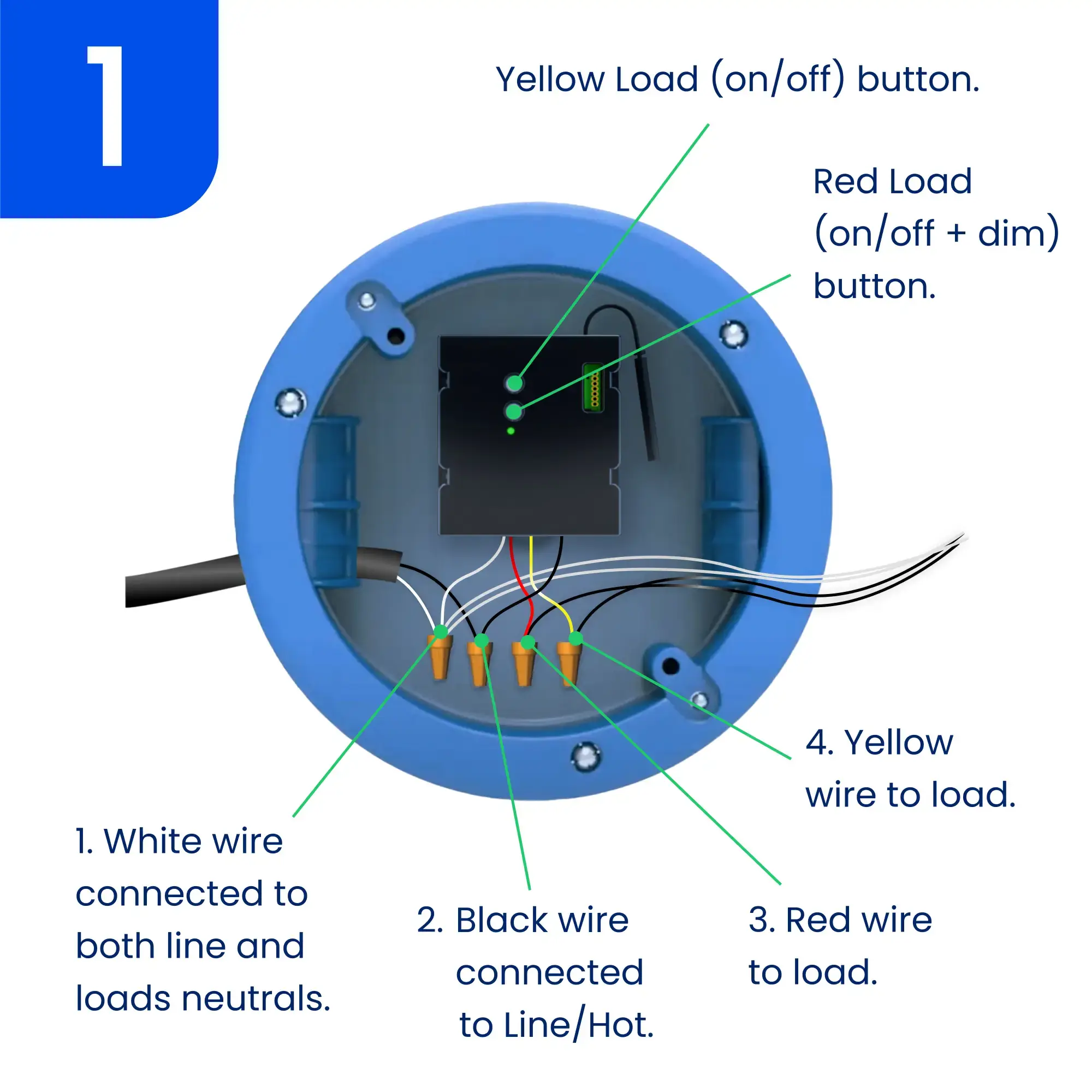
1. Controllers should be mounted in junction boxes of a suitable size to satisfy the local electrical code.
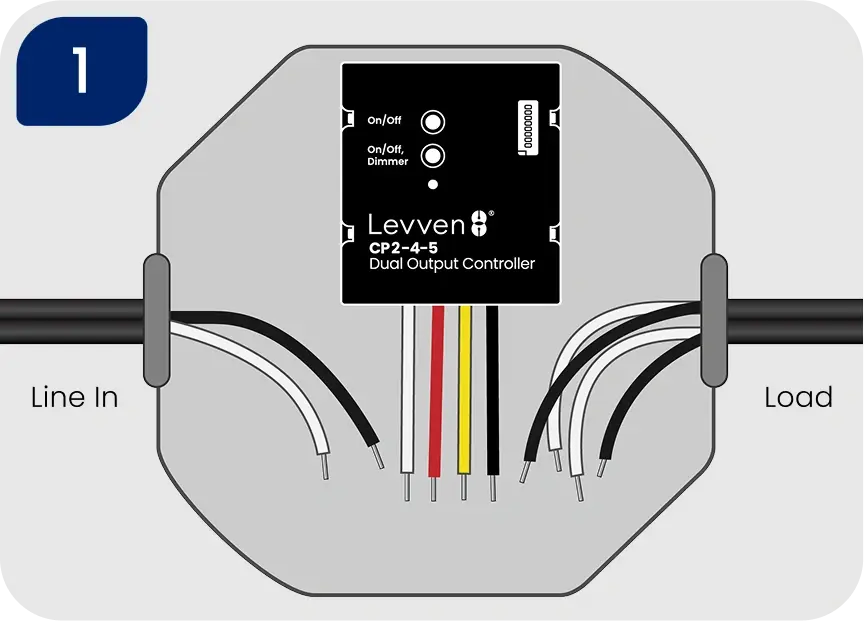
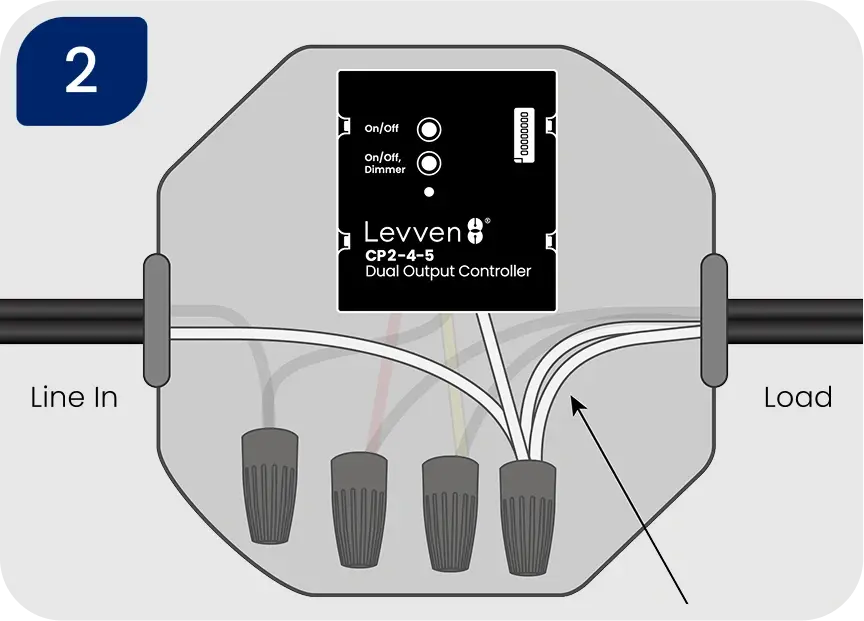
2. Connect the white wires from the power, loads, and controller together
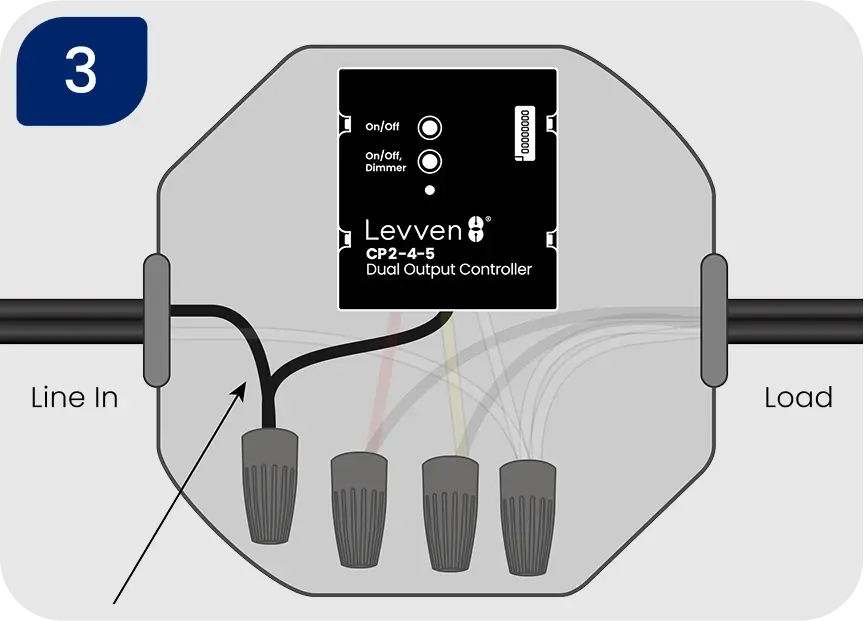
3. Connect the black power wire to the black wire of the controller
4. Connect the controller's red wire to the black wire of the load that requires dimming functionality. Connect the controller's yellow wire to the black wire of the load that only requires on/off control.
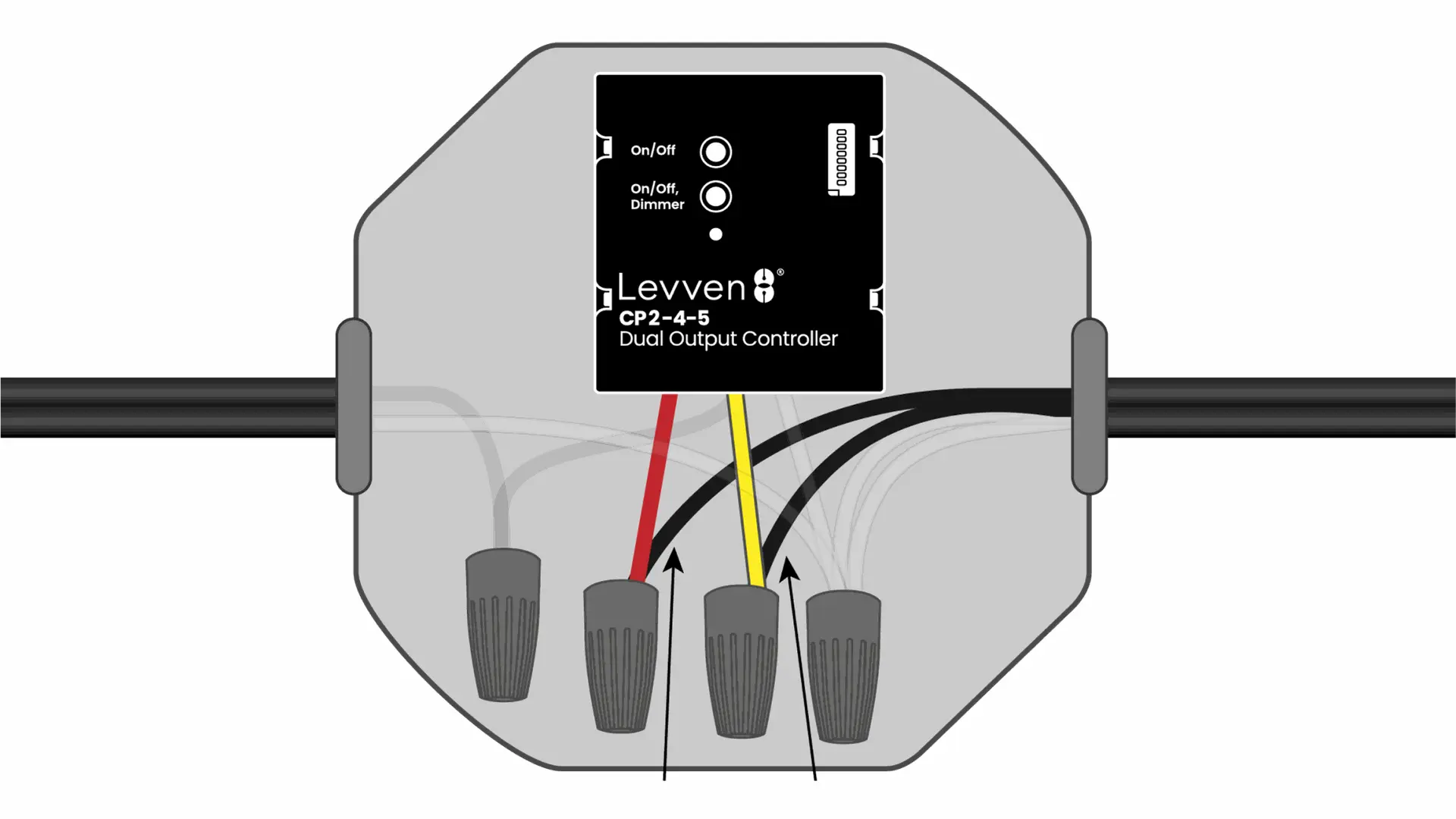
When your connections are safely completed, turn the power back on at the circuit breaker. The power controller's LED should light up solid green.
You have successfully wired the Levven CP2-4-5 controller.
Continue to group multiple controllers, or pair switches to your controller.
Installing More Than One Controller
Create a 'Home Group' for Controllers
Controllers must be in the same group to function together.
- Controllers will only communicate with other devices in the same group.
- They ignore signals from devices that are not in the same group.
A switch can only control controllers that are in the same group.
When you add a Levven Q Gateway to your home, it will only see and control devices in its group.
How to Add a Controller to a Group
1. Press and release one of the group/pair buttons on the first controller or any controller already part of a group. The LED on this controller will blink green to indicate pairing mode. To cancel, simply press and release the same button again.
2. Press and release one of the group/pair buttons on the new controller being added to the group. The controller's LED will flash green.
3. The LED on the first controllers will start blinking red and green to confirm a signal is received.
4. Press and release the same group/pair button on the first controller to complete the grouping. The LED on both controller's will blink green three times to confirm the grouping. The grouping process will time out after 60 seconds, and you may need to start the process over again.
Repeat this process to add all of the controllers into the same group.
Pair a Switch to a Controller
Switches send on/off commands to the controller. You can pair up to 10 switches to each output of the CP2-4-5 controller.
How Many Switches Can be Paired?
Up to 10 different switches can be paired to each output of the CP2-4-5 power controller.
- This is useful for multi-way switches.
- For example, you can have one switch at the bottom of the stairs and one at the top. Both switches can control the same stairway light by pairing the switches to the same controller.
Manually Pair a Switch to a CP2-4-5 Controller
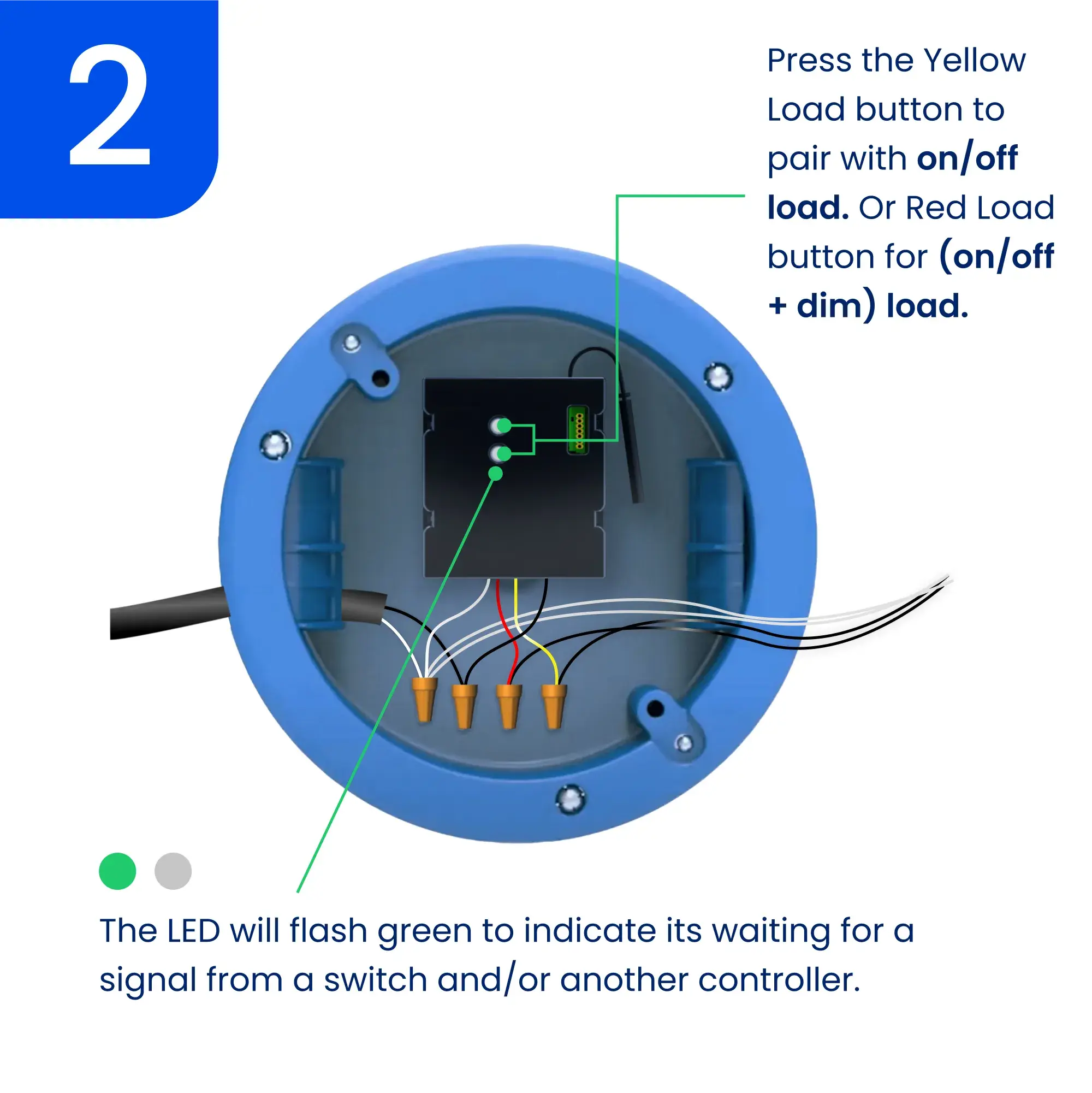
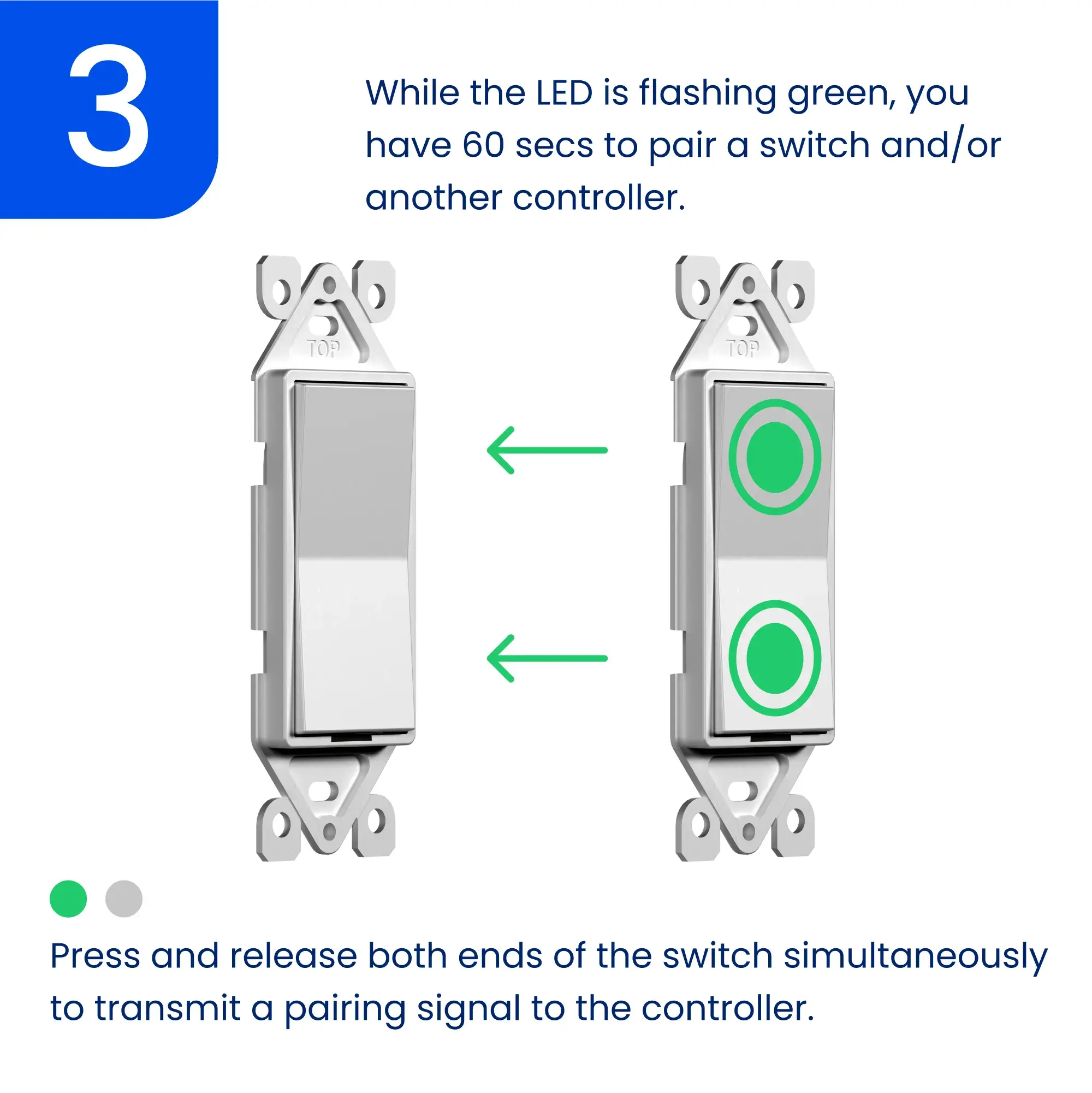
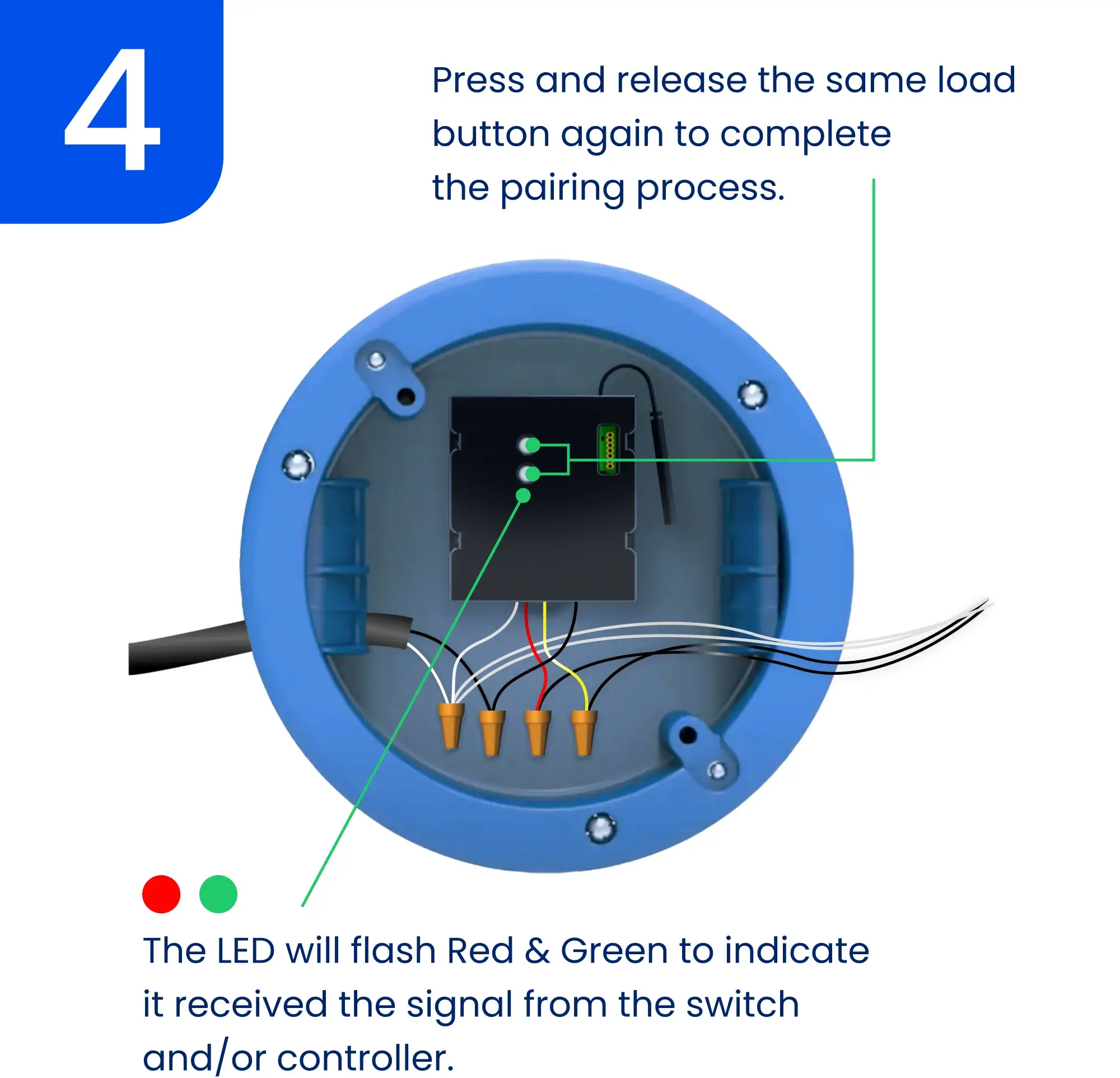
Dimmer Switch
To increase brightness:
- Press and hold the up/on button.
- Let go at desired brightness.
To decrease brightness:
- Press and hold the down/off button.
- Let go at desired brightness.
If you are using the Levven Controls app:
- Decrease brightness by swiping left on the controller's tile in the device screen.
- Increase brightness by swiping right on the controller's tile in the device screen.
Advanced Settings
Setting Min/Max Brightness Levels
Configuring the minimum and maximum brightness levels for a Levven controller allows users to tailor the brightness range of the controller according to their preferences. This customization enables fine-tuning the lights to match specific needs and create the perfect ambiance for any situation. By setting the minimum and maximum brightness levels, users have precise control over their lighting, enhancing comfort, and energy efficiency.
Set the Dimmer's Maximum Brightness Level
Press and hold the up/on button on the switch to increase the light's brightness to your desired level.
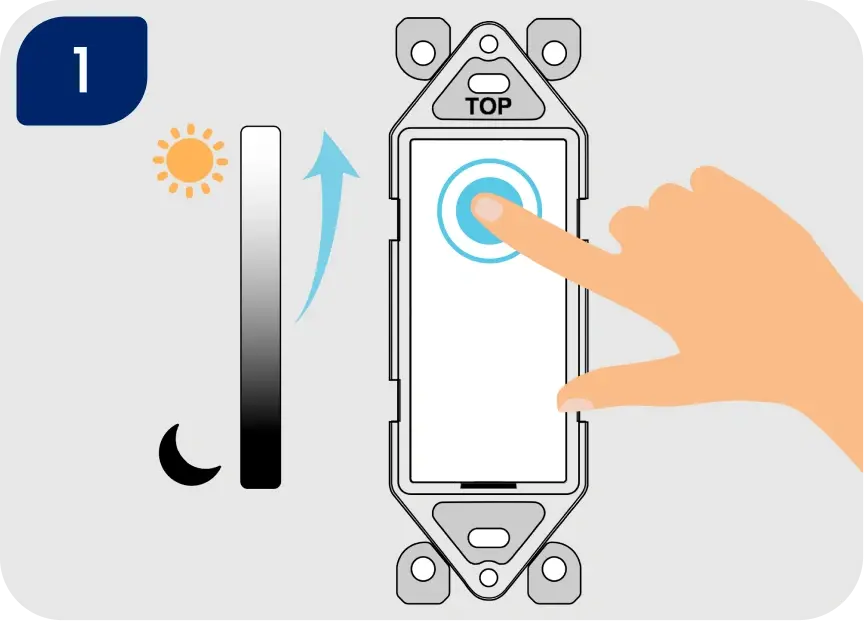
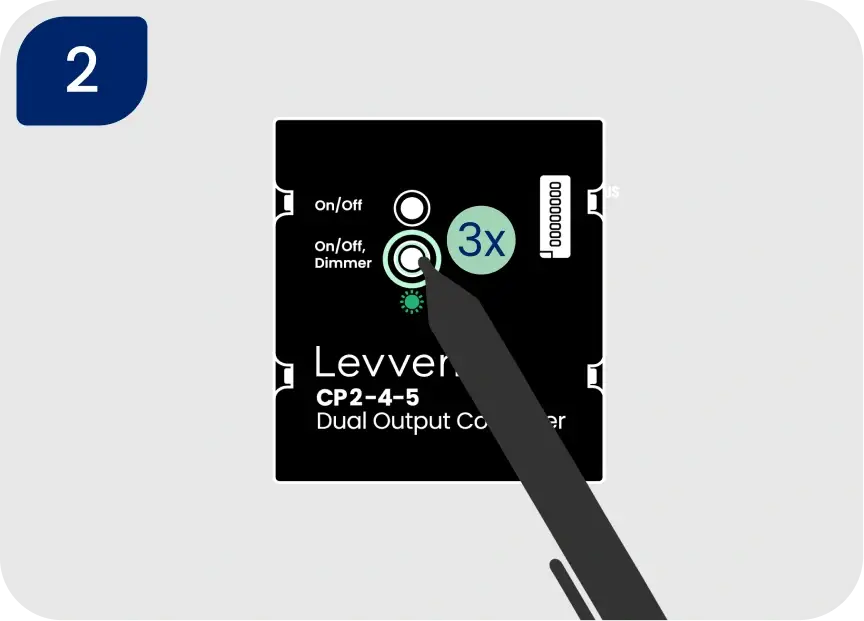
Triple-click the SECOND/BOTTOM pair button on the controller. This sets the highest brightness. The controller's LED indicator will flash green to confirm the setting is saved.
NOTE: If the LED blinks red only, factory reset the power controller and try the process again.
Set the Dimmer's Minimum Brightness Level
Press and hold the down/off button on the switch to decrease the light's brightness to your desired level.
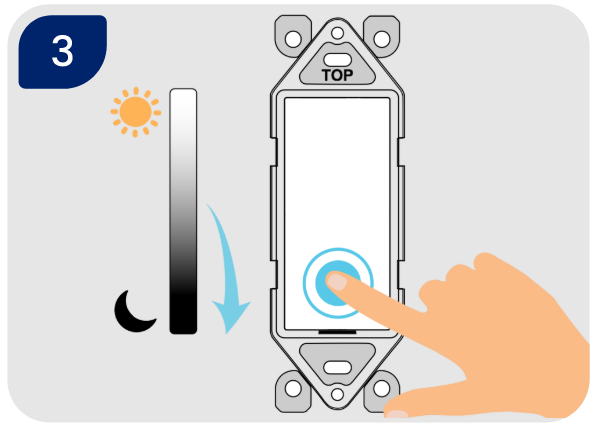
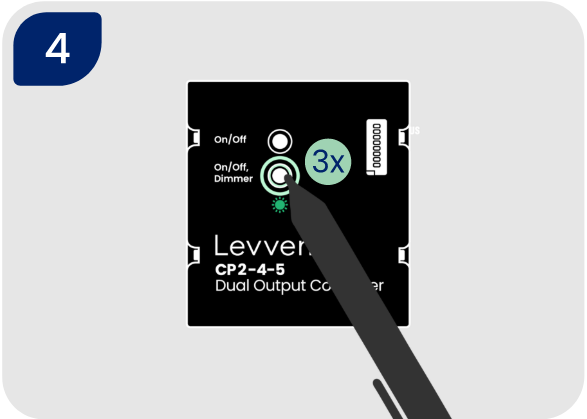
Triple-click the SECOND/BOTTOM pair button on the controller. This sets the lowest brightness. The controller's LED indicator will flash green to confirm the setting is saved.
Soft Reset of CP2-4-5 Controller (Settings Only)
WARNING: This will reset dimmer settings (min and max levels) and paired switches to this controller.
- To soft reset the controller's dimmer settings and/or paired switches, press and hold the SECOND/BOTTOM button for five seconds.
- The controller's LED will flash RED three times to confirm the output's paired switches and features have been erased.
- Any switches previously paired to this controller will need to be paired again: Pair a Switch to a Controller
Factory Reset the Power Controller
- To factory reset the controller, press and hold one of the group/pair buttons for 10 seconds. The controller will flash red 3 times during the 5 second mark to indicate cleared paired switches and features.
- After the 10 second mark, the LED will flash red 10 times to confirm the controller has been restored to factory settings.
Optional: Setup in Levven Controls App
Adding a new controller is easy with the Levven Controls App. To use the app to add controllers to your home group, you will need a Levven Q Gateway.
If you need to setup your Q Gateway, head here to get started: Q Gateway Support.
If your Q Gateway is setup and you are using the Levven Controls app, head here: Device Management.